
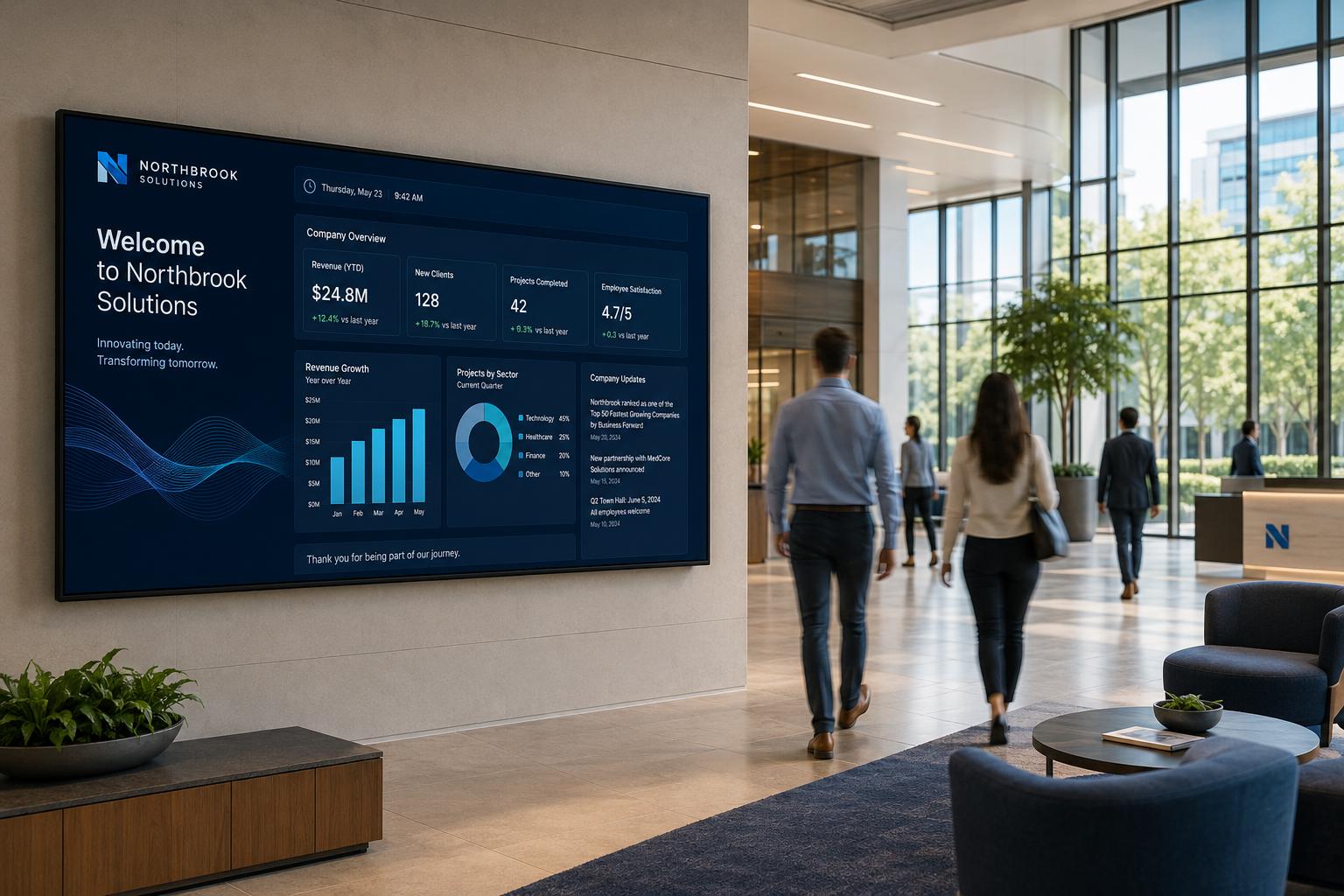
A digital signage CMS (content management system) is software that lets you upload media, arrange it into layouts and playlists, schedule it, and send it to every screen in your network from one web dashboard. Your team changes content once, and every screen updates without anyone visiting a store.
What does a digital signage CMS do?
A digital signage CMS does five jobs: it stores your media, arranges it on screen, decides when it plays, keeps the players running, and controls who can change what. Most problems teams have with screens come from doing one of these jobs by hand.
- Media library. One place for every video, image and template, so stores never play an outdated file.
- Layouts. A screen can be split into zones, for example a video on the left, a price list on the right and a news ticker along the bottom.
- Playlists and scheduling. Content plays by time of day, day of week and location, so a breakfast menu can switch to lunch on its own.
- Device management. You can see which screens are online and send commands to them remotely.
- Roles and permissions. Head office can lock the brand layout while each store manager edits only their local offers.
How does a digital signage CMS work?
A digital signage CMS works in two parts: a web dashboard where people manage content, and a player app on each screen that downloads and plays it. A typical setup looks like this:
- Install the player. The player app runs on the media player built into or attached to each screen.
- Pair the screen. Each player is linked to your account and placed in a group, such as a city or a store type.
- Upload media. Your team adds videos and images to the media library.
- Build and schedule. You arrange media into a layout and a playlist, then choose which screen groups play it and when.
- Play and cache. Players download the content, store it locally and keep playing even if the connection drops.
Which features matter most when you choose one?
The features that matter most are the ones that keep screens running without a technician on site: offline playback, scheduling by time and location, and grouping. Use this table to compare vendors.
| Feature | Why it matters | What to ask the vendor |
|---|---|---|
| Offline playback | A network outage should not turn a screen black in front of customers. | Does content keep playing from local storage when the internet drops? |
| Time and location scheduling | Different stores and dayparts need different content. | Can one campaign target some stores at some hours only? |
| Multi-zone layouts | One screen can carry a video, prices and a ticker at once. | Can I edit zones by drag and drop, without a designer? |
| Screen grouping | Updating screens one by one does not scale. | Can I group screens by city, store type or orientation? |
| Media formats | Your existing files should play as they are. | Which video and image formats are supported? |
| Hardware support | The software only helps if your players can run it. | Which operating systems and chipsets are supported? |
| User roles | Brand teams and store teams need different rights. | Can I limit who edits which screens and layouts? |
What hardware do you need for a digital signage CMS?
You need a screen and a media player that runs the CMS player app; many commercial displays have the player built in. Check the vendor's hardware list before you buy screens, because the player decides which formats and resolutions you can show.
For example, Viewixsoft CMS runs on players with:
- Operating system: Android 11 or later
- Chipsets: Rockchip RK3566, RK3576 and RK3588
- Memory: at least 2 GB of RAM and 32 GB of storage
- Resolutions: Full HD (1920 × 1080) and 4K UHD (3840 × 2160), in landscape or portrait
- Media: MP4 and MOV video (H.264), plus JPG, PNG, WebP and GIF images
Viewixsoft is the software arm of Viewix, which builds the screens, so Viewix displays and Viewixsoft CMS are designed to work together.
How do you roll out a CMS across many locations?
Roll out in stages: prove the setup in one location, then copy it. A pilot shows you the problems while they are still cheap to fix.
- Start with one pilot location. Install a few screens and run real content for a few weeks.
- Agree on names and groups. Decide how screens are named and grouped, for example by city and store type, before you add more.
- Set roles early. Give head office the brand layouts and give store teams only the zones they need.
- Turn your best layout into a template. New locations then start from a layout that already works.
- Scale group by group. Add locations in batches and check that each group plays the right content.
See how this applies to stores in our retail case study.
What mistakes should you avoid?
The most common mistake is buying screens before choosing the software, then finding that the players cannot run it. Other mistakes we see often:
- No offline plan. Test what happens when you unplug the network cable.
- One giant playlist. Without groups and schedules, every store shows the same content at the same time.
- Everyone is an admin. Without roles, one wrong click can change every screen in the network.
- No way to check what played. Plan how you will confirm that campaigns ran; Viewixsoft Tracking (coming soon) is built for proof-of-play reports.